Get to Know the App
The Y Mobile App is your ticket to everything the Y has to offer. With the new app, you can...
- Scan into the facility using your in-app membership barcode
- View real-time schedules for lap swim, group fitness classes, open gym, and more
- Register for programs and classes directly through your linked Amilia account
- Receive important notifications about facility updates, class changes, and weather closures
- Reserve the Racquetball Court and Kids Club
Other Important Information:
Schedules
All live pool, gym and group fitness schedules will be available exclusively through FamilyWorks, offering easier navigation and better filtering options. Schedules will still be accessible on both mobile and desktop through our schedules page.
Racquetball Reservations must be made exclusively through the app
The new app makes reserving the racquetball court easier than ever! Reservations have moved exclusively to the new Y app and will no longer be available in Amilia.
The Amilia App won’t go away
You may continue to use the Amilia app if you prefer, but the new app will offer better navigation, more features, and a streamlined experience—and we’ll continue rolling out updates to make it even more seamless!
App Notifications
We’ll use the app to send important notifications regarding weather-related closings/delayed openings, and/or other updates. Notifications must be enabled on your device in order to receive those alerts.
Login Info
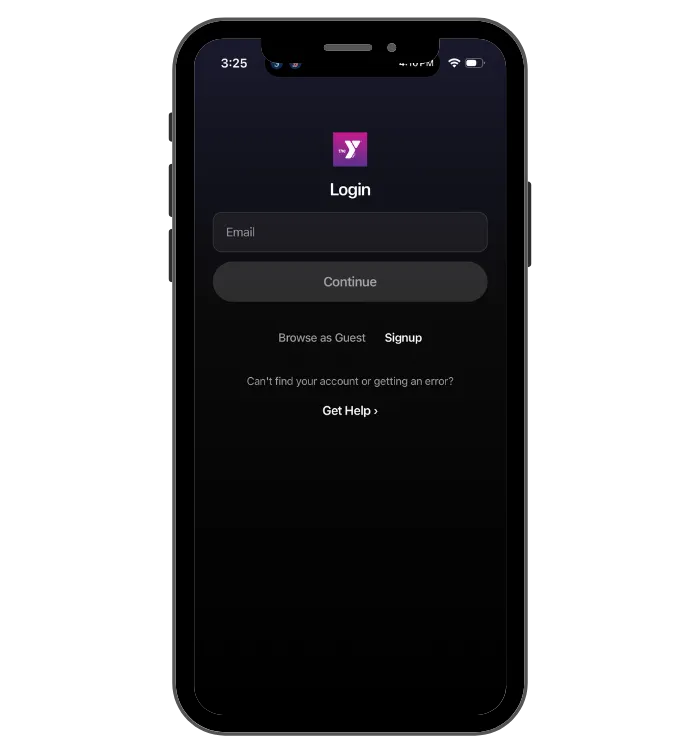
The login process is the same for iPhone and Android users.
1. Tap “Login.”
2. Enter the email associated with your Amilia SmartRec member account. You will be sent a one-time code.
3. Enter the code, and tap “Continue.”
4. If you get the “Account not found” screen, recheck the email associated with your member account, or contact Member Services.
Please note: When you open the app for the first time, log in using the email associated with your Amilia account.
If each person on your membership account has their own unique email in Amilia, they can log in individually. If not, everyone should log in using the primary account holder’s email. All member barcodes are accessible from any account under the membership.
If the wrong profile appears when you log in, or the default profile isn’t the account owner or email holder, please submit this form so we can correct it.
Find it All in the Y Mobile App
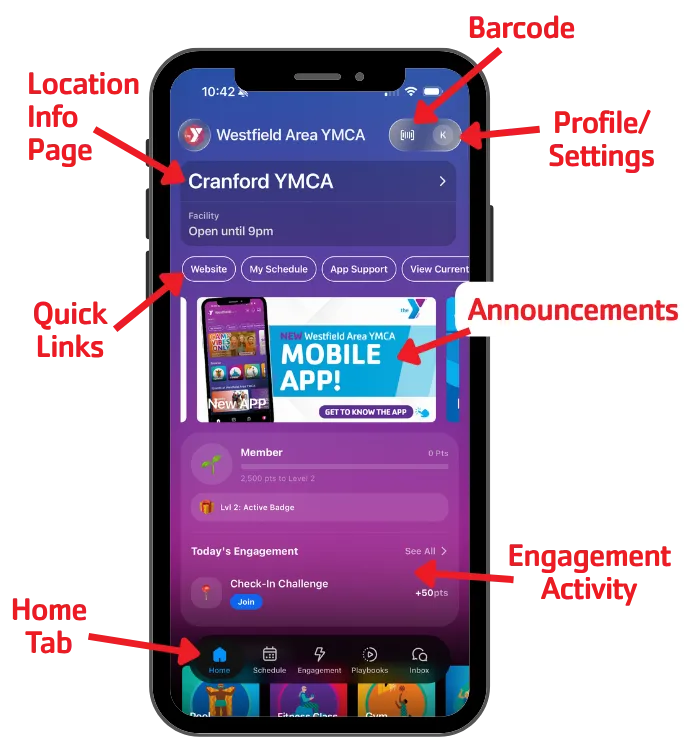
Now that you’ve logged into your new app, let’s have a look around! The Home tab is the first screen that appears when you open the app. It houses all of the essential features you need to get started.
On the Home tab you’ll find:
- Location Information
- Barcode(s) to check in at the Y
- Quick Links
- Announcements
- Engagement Activity
- Upcoming Events
Location Information Page
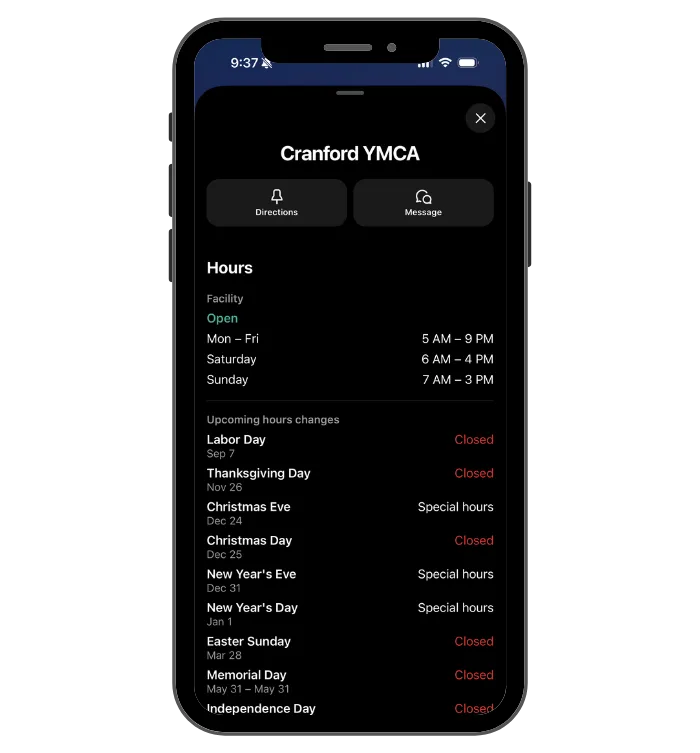
The location information page shows you details such as operating hours, contact information, announcements, and more. To navigate to the Location Information Page, tap the location name at the top of the Home screen.
Barcodes
Tap the barcode icon at the top of the Home screen to access your barcode(s). The barcode lets you scan in at the Welcome Center. For individuals, there will be one barcode. For families, there will be barcodes for each person under your membership.
Facility Schedules & Programs
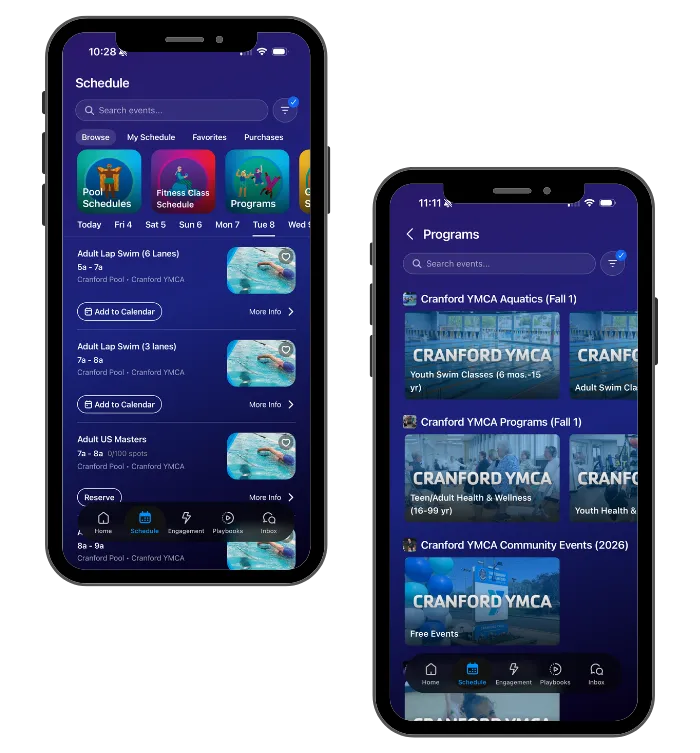
The Schedules page showcases live schedules of the facility. This includes group fitness classes, open swim, open gym, court availability, and more.
Programs are paid activities such as swim lessons, sports classes, camps, and more. Under the Programs tab, you can search using the search bar at the top of the screen or browse using preset categories. Once you’ve found what you’re looking for, you can register directly in the app. When you tap a program, you will see a list of available sessions. Note that only programs currently enrolling will appear in search results.
The search can be further filtered using the dropdowns at the top of the page, including day of the week or member age. Each listing shows the program name, date, time, price, and open spots available. Tapping a listing opens the registration screen. From there, tap “Register Online” and follow the prompts to complete your registration.
Notifications & Community
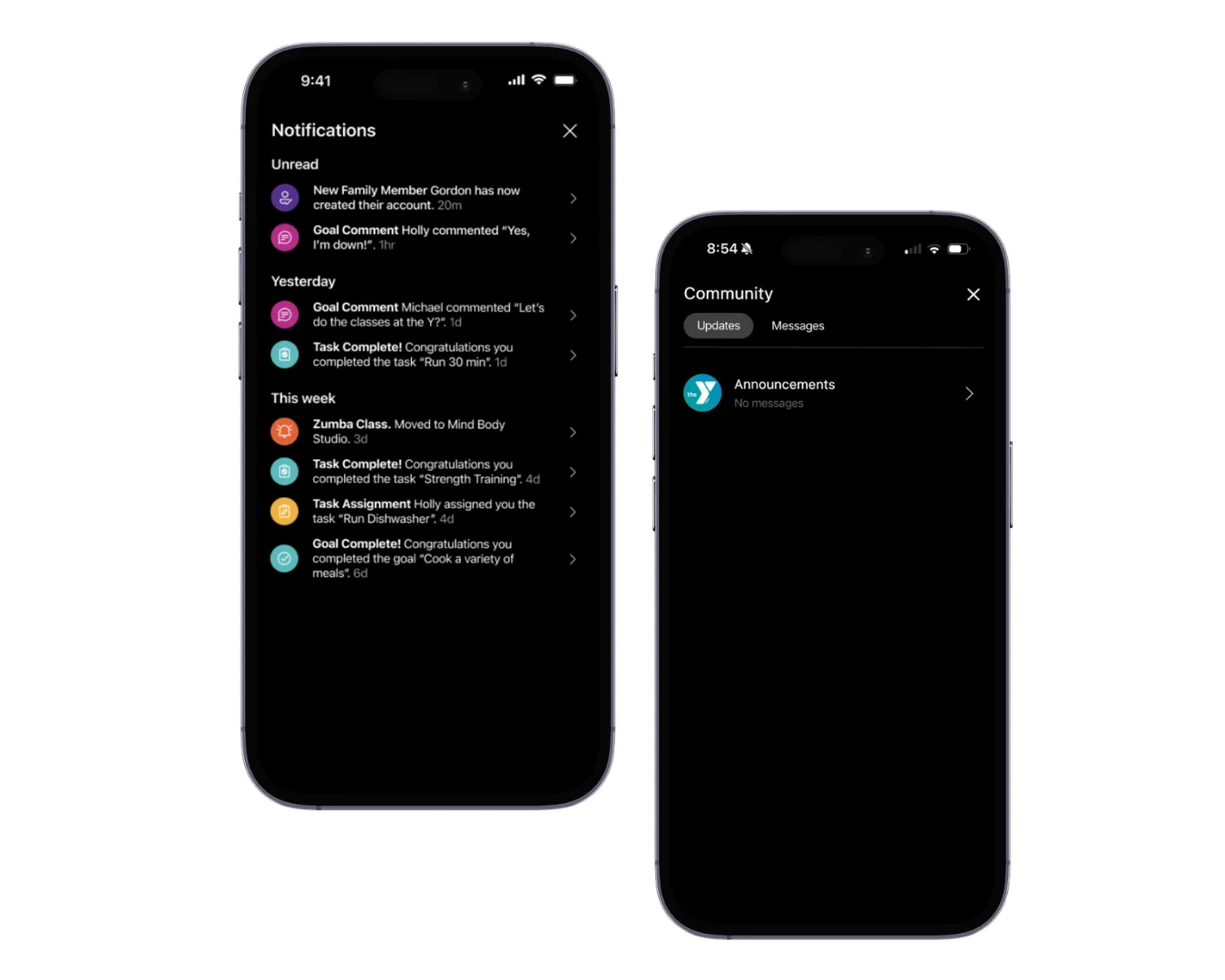
To view system-generated notifications, tap the bell icon at the top of the Home screen. Once selected, a list of all notifications will appear. Examples of system-generated notifications include goal reminders or class cancellations.
In the Community Hub, you will see two types of communication: “Updates” and “Messages.” Updates are alerts specific to a channel (facility updates, pool closures, promotions from your YMCA). If you mute an update channel, you can still view updates but will no longer receive push notifications. If you leave the channel, you will no longer receive alerts.
Add Classes to your Personal Calendar
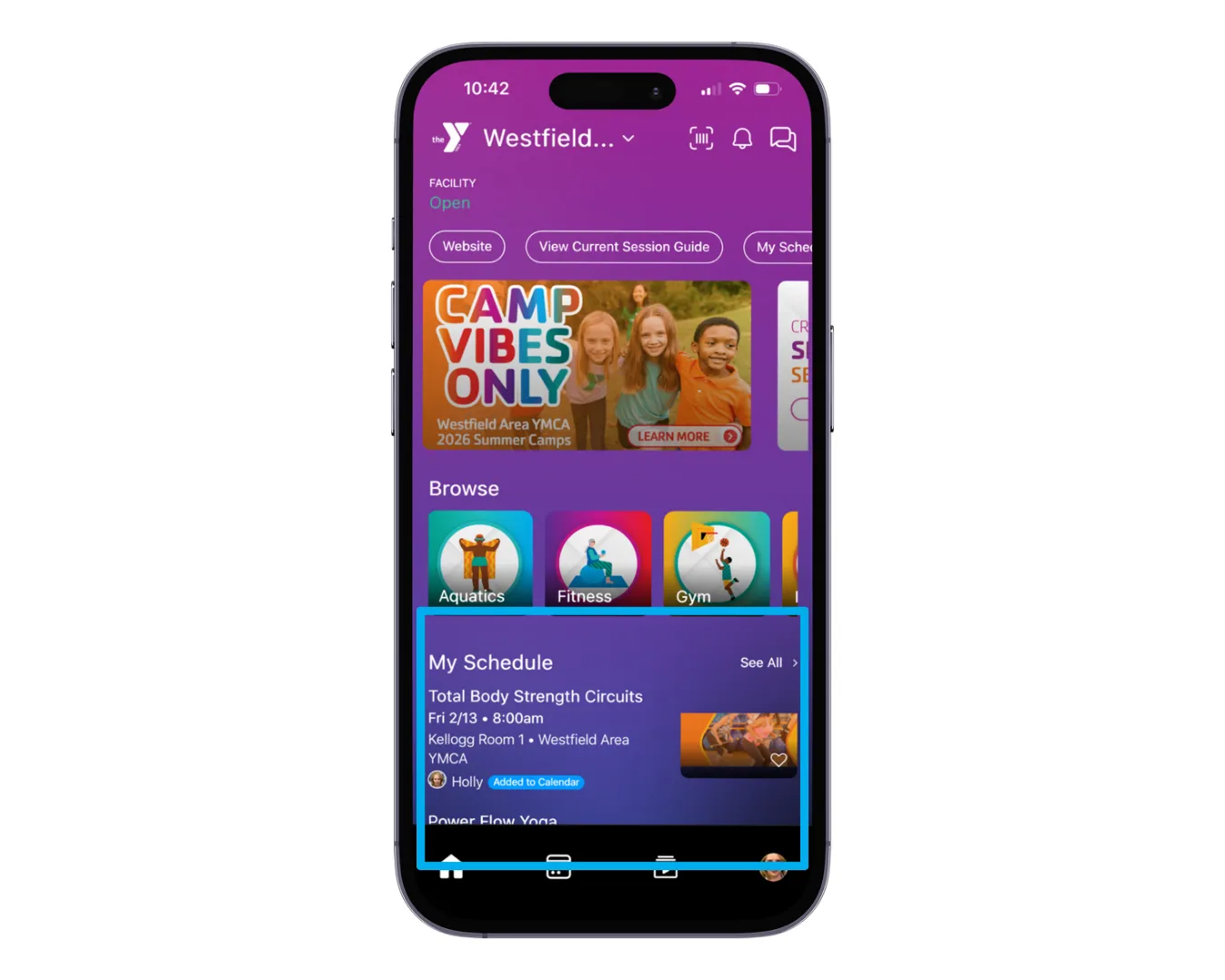
On the Home tab, you can browse by schedule type such as group fitness classes, programs, pool schedules, court schedules, and more. Tap the heart icon on an event to add it to your favorites. Once added, you’ll receive updates about those events. You can also tap “My Favorites” on the Home tab to view only your saved events.
Under “My Schedule,” you’ll see the next three events that you or members of your family are registered for. Events are grouped by member. To view a full list of events, tap “See All.” There you can see past, upcoming, and favorite events. If you need to update your registration status, tap the event directly.
Playbooks
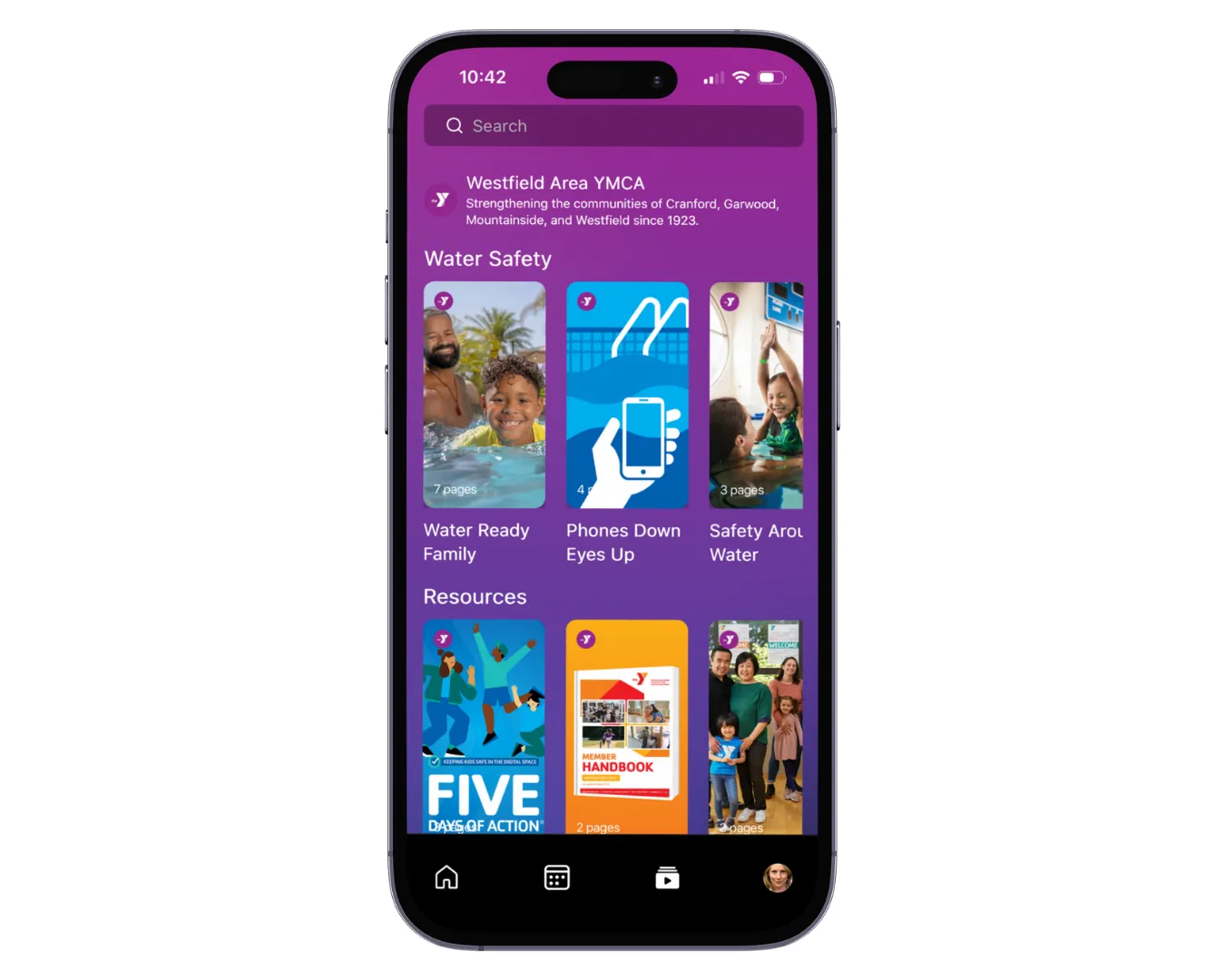
Playbooks are interactive content and resources created for you. You can access Playbooks by tapping the “Play” icon at the bottom of the Home screen. They function similarly to Instagram or Facebook stories and may feature pictures, videos, assessments, and more.
To view a Playbook, tap the image above the Playbook name. A new page will open with the selected content. To move through the pages, tap the right side of the screen. A progress bar at the top will show how many pages remain.
Your User Profile
Settings
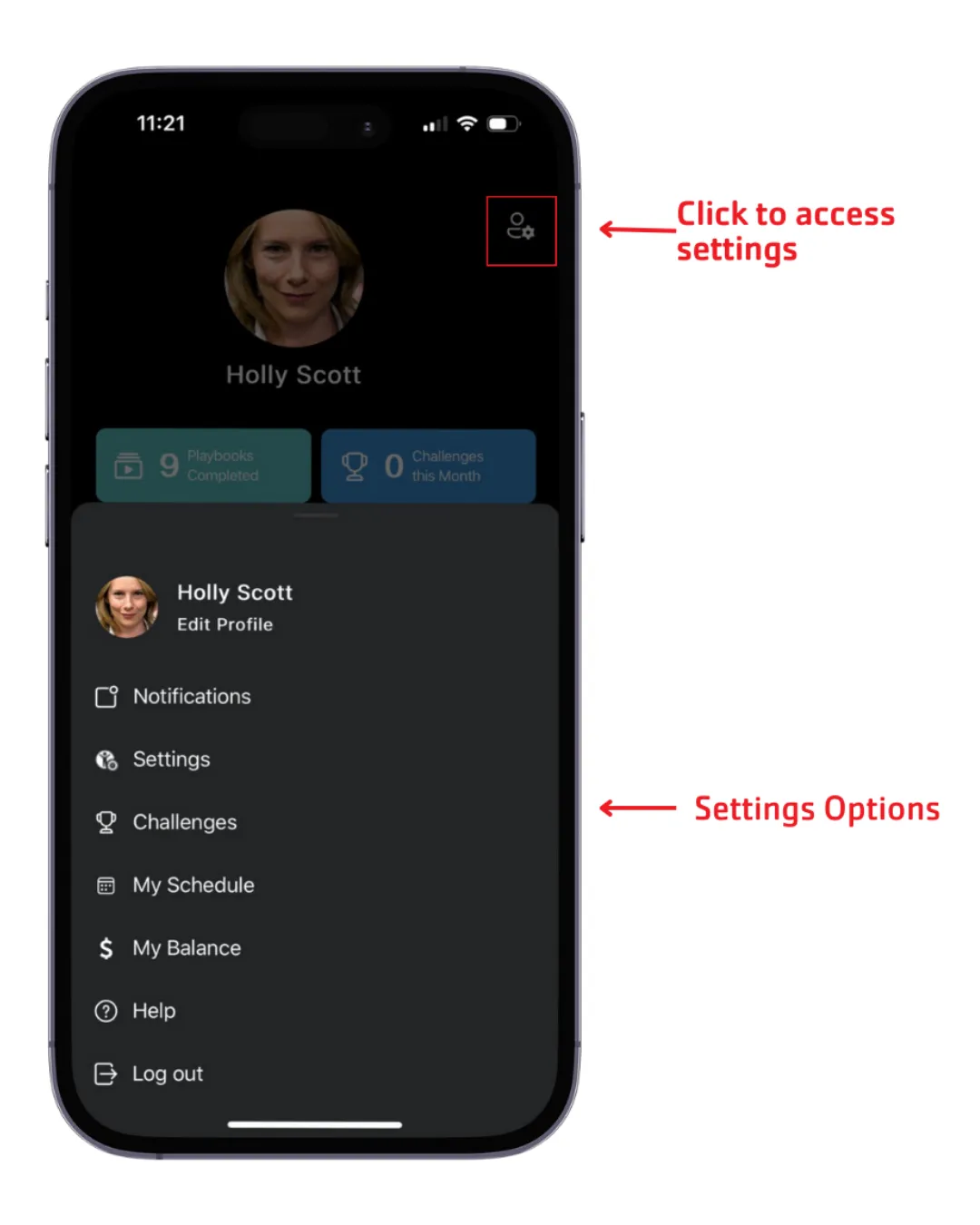
Click the User Settings Icon in the top right of the screen to access the settings. Here you can:
- Update your preferred location
- Adjust your notification settings
- View current and past challenges
- View and modify your schedule
- Access Amilia
- Log Out
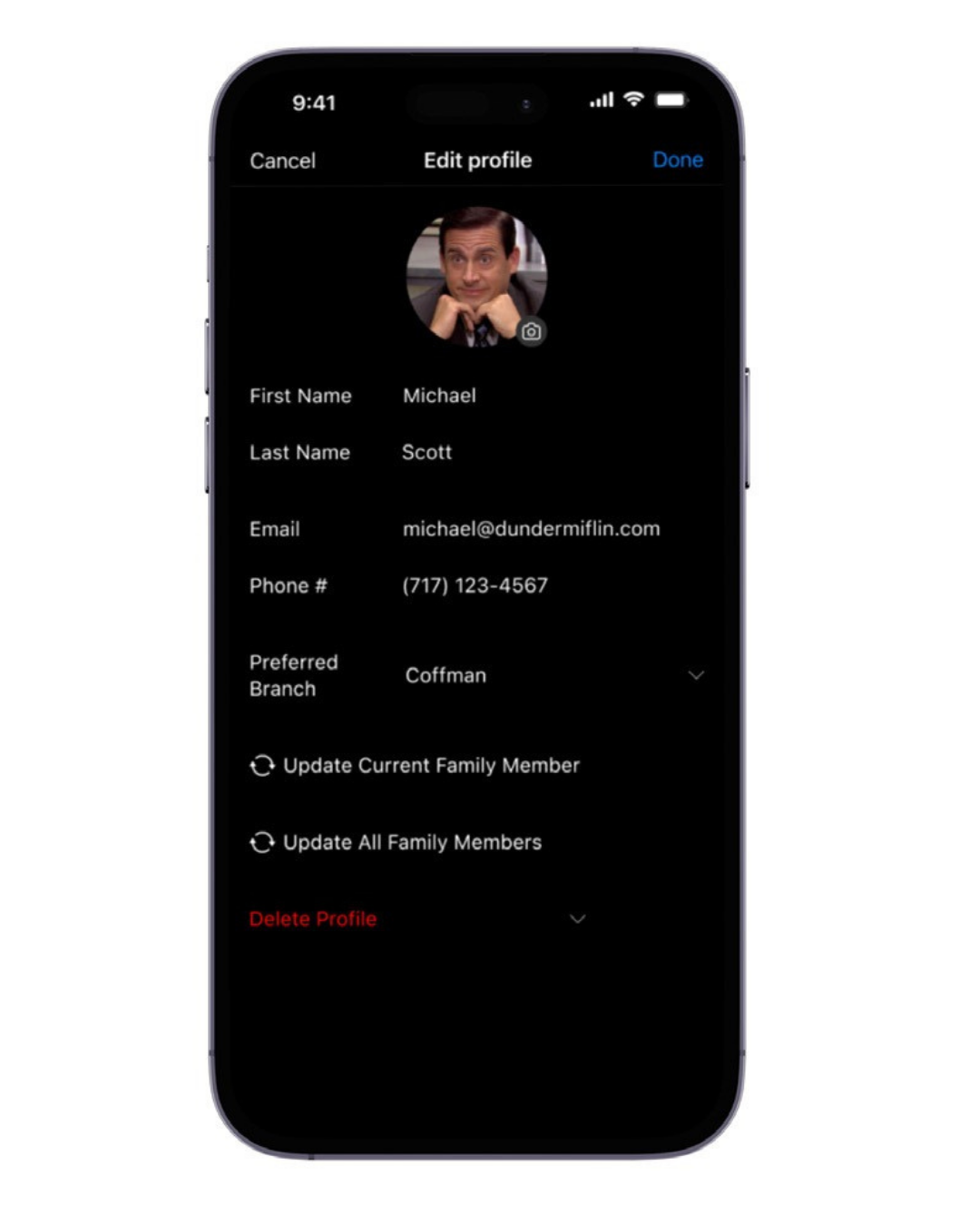
Edit Profile
Tapping "Edit Profile" will allow you to update your preferred location. Tapping "delete profile" will delete your app data, but will not cancel or delete your Y membership. Tap "Update Current Family Member" or "Update All Family Members" to re-sync member data.
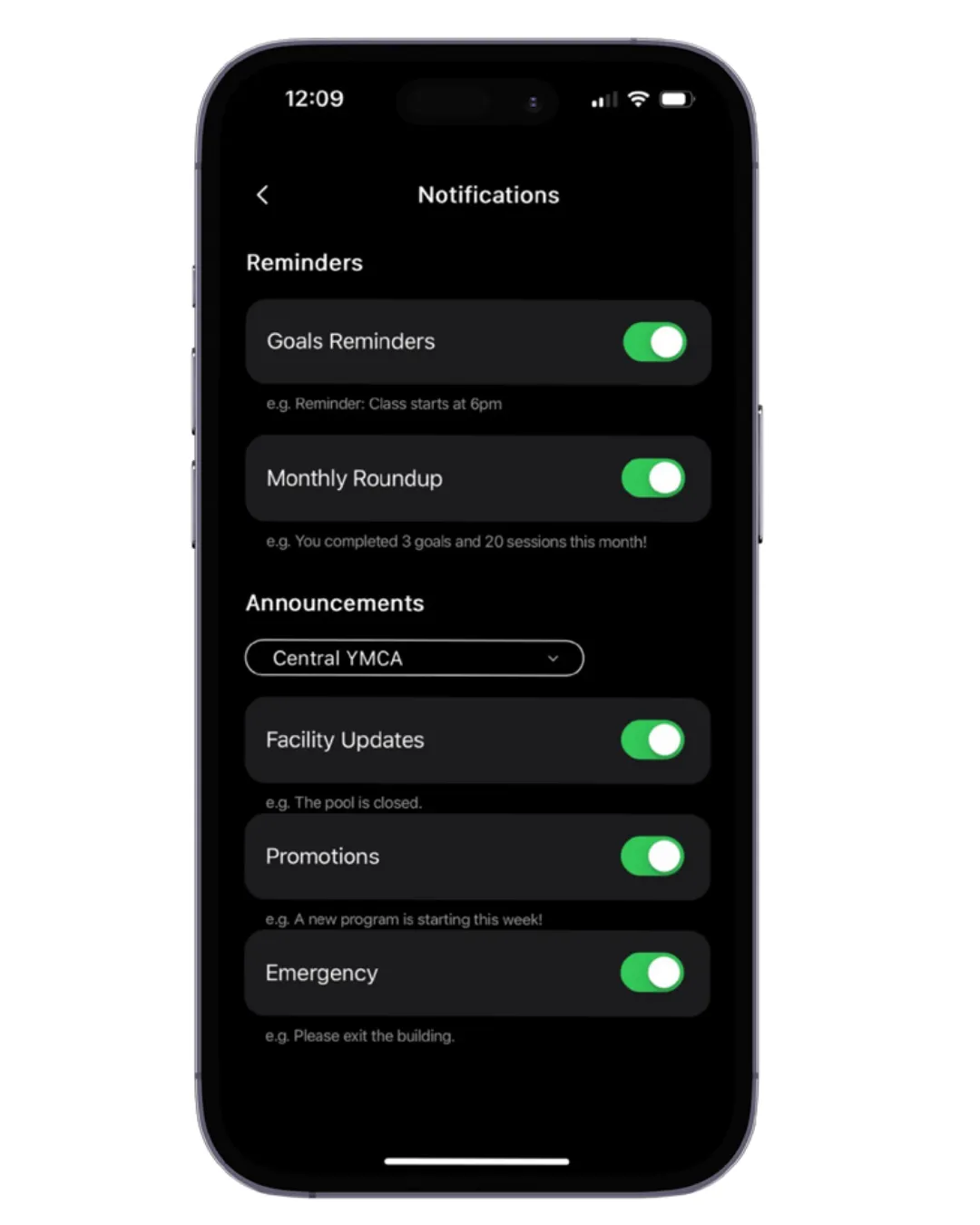
Notification Settings
You can customize which notifications you receive here. You are automatically subscribed for all notifications for your preferred location. Pro Tip: Be sure to enable notifications so you receive important updates and information about what's going on at the Y!
Metrics
There are four metrics that will appear on your profile page:
- Check-Ins
- Playbooks Completed
- Challenges Finished
- Goals Achieved
Family Section
On the profile tab there are 5 features for families:
- Family Name - edit by tapping the name that appears.
- Family Crest - tap “Get Started” to create a family crest that represents your family values.
- Family Journey - tap the arrow to state where you are now and your vision for the future.
- List of Family Members - tap on the “add person” icon to invite others on your account to collaborate. This does not add a new person to your Y membership/account.
You're Ready To Use The App!
Now that you've downloaded and understand your Y mobile app, you're ready to enjoy all of the benefits of your membership. If you need any help along the Y, contact us below or just stop by the Welcome Center.
Mobile App Frequently Asked Questions
Need assistance? View our FAQ! If you have specific questions that are not addressed below, please feel free to contact Member Services, or visit the Welcome Center.
No! The app is 100% free. You'll only make payments for fee-based programs and classes through Amilia.
Yes! When you open the app for the first time, log in using the email associated with your Amilia account.
If each person on your membership account has their own unique email in Amilia, they can log in individually. If not, everyone should log in using the primary account holder’s email. All member barcodes are accessible from any account under the membership.
If the wrong profile appears when you log in, or the default profile isn’t the account owner or email holder, please submit this form so we can correct it.
Not a problem! Our app is accessible via the web to view schedules, sign up for classes, and more. Click here to view.
- Open the App
- In the top right hand corner, click on the barcode icon
- Use the arrows to navigate between other family member barcodes
- Open the mobile app
- Navigate to the home screen
- Click next to the YMCA logo in the top left-hand corner
- Select your preferred location and scroll to view hours, contact information, amenities, and more.
- Open the Mobile App
- Click on the calendar icon (second icon on bottom navigation menu)
- Under the "Browse" category, click on Aquatics, Fitness, Gym, etc., or scroll to further narrow your search and view specific options by category.
- Within the schedules pages, you can scroll left and right to browse classes by dates, categories, or instructors using filters. Click once to add or change your preferences.
- To view more information about a class, e.g. description, capacity, location or registration details, click on the class time where the > is for the class name you’re interested in.
- You can also “favorite” any classes you’d like to receive notifications and messages regarding by clicking the heart button in the top right-hand corner of the class details page.
The Westfield Area YMCA & Cranford YMCA will use the app to send important notifications regarding weather-related closings, delayed openings, and/or other updates regarding our programs and facilities! However, notifications must be enabled on your device in order to receive these alerts.
- Open the Mobile App
- Click on your profile picture (bottom right-hand corner)
- Click on the Settings icon (top right-hand corner)
- Click on Notifications
- Enable or disable the notification announcement types that you would like to receive.
Your smartphone device also controls your notification settings. If you are not receiving notifications, please check your device settings to ensure notifications are enabled for the WWFY Mobile App.
IPHONE:
- Open the Settings app on your iOS device
- Click on Notifications
- Scroll down and click on WWFY
- Tap the switch to ‘Allow Notifications’ to turn notifications on or off
- Manage alert and screen preferences as desired
——————
ANDROID:
- Open the Settings app on your device
- Click on Notifications
- Click on See All
- Scroll down to WWFY
- Tap the switch to ‘Allow Notifications’ to turn notifications on or off
- Manage alert and screen preferences as desired
Notifications will pop up on your home screen like any other apps on a smart phone. To view notifications while within the app, tap the bell icon at the top of the home screen.
Please note settings may vary by device. For specific instructions about your device, you may need to contact your service provider.
- Click the icon in the bottom right of the app.
- Once on your profile page, hit the gear icon in the top right.
- Select "Edit Profile" and then tap the little camera icon next to your current profile picture (if applicable).
- Update your photo! You may also change other profile information here.